Overview
The Find Carriers feature allows Premium Shippers to proactively identify and assign recommended carriers when a listing is not receiving enough engagement.
- Displays up to 10 recommended carriers based on internal models
- Designed to speed up dispatching and reduce time on the load board
- Available after a listing is posted
What’s New
- New Find Carriers button on the Manage Listings page
- Displays recommended carriers directly within the platform
- Allows faster assignment to a selected carrier
When to Use This Feature
- A listing is active but not receiving calls, bids, or carrier interest
- The shipper wants to proactively assign a carrier
- The shipper is a Premium Plan user
Find Carriers is NOT Available For
- Listings with non-U.S. origins or destinations
- Listings outside the supported price range (~$35–$20,000)
- Listings with a price per mile outside the supported range of $0.20–$25 (If the listing does not meet eligibility requirements, carriers will not be returned and the user may see an error message)
Step-by-Step Process
Step 1: Navigate to Manage Listings
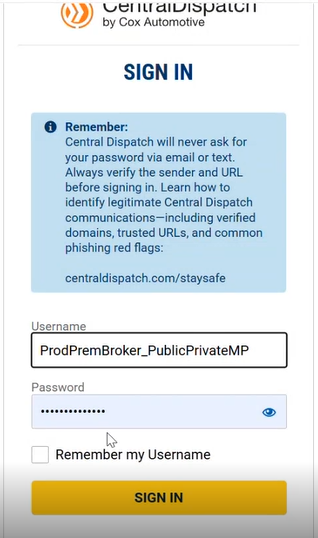
- Log in to Central Dispatch
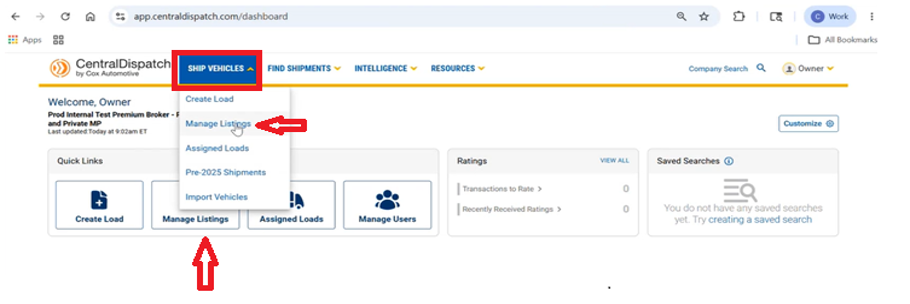
- Go to Manage Listings
- Via dashboard quick link OR
- Top navigation menu
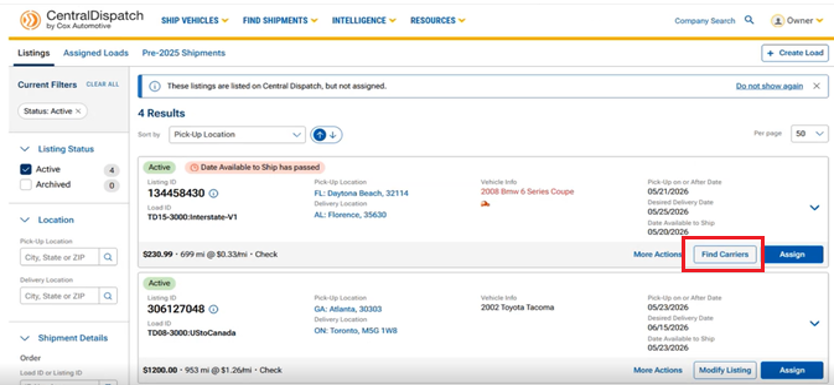
Step 2: Locate the Listing
- Find the listing you want to move
- Click “Find Carriers”
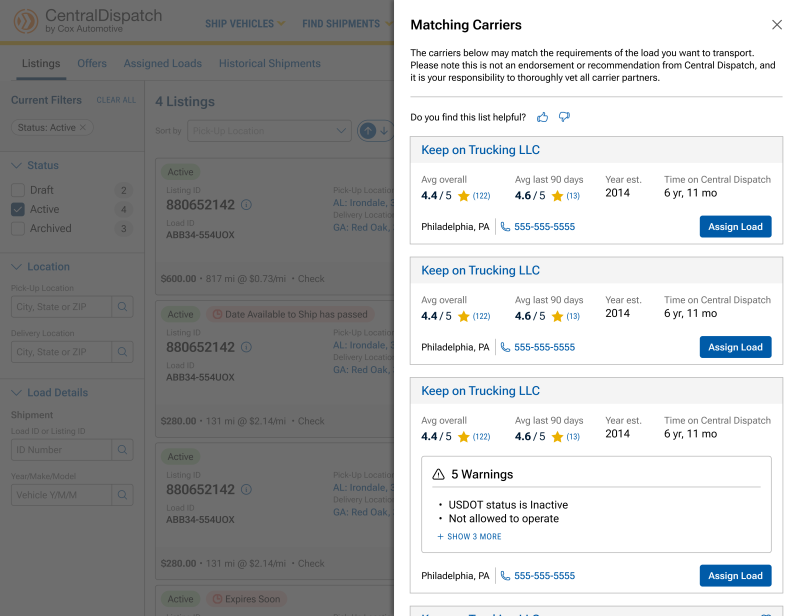
Step 3: Review Recommended Carriers
- The system displays up to 10 recommended carriers based on:
- Historical performance
- Lane data
- System insights
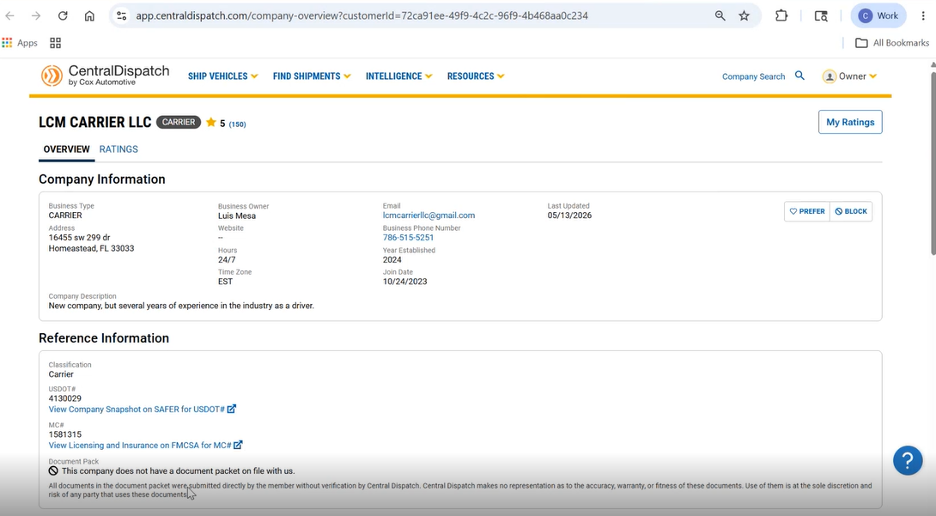
- Each carrier includes (For detailed information select a carrier from the list):
- Company details
- Contact information
- Ratings / Trust indicators
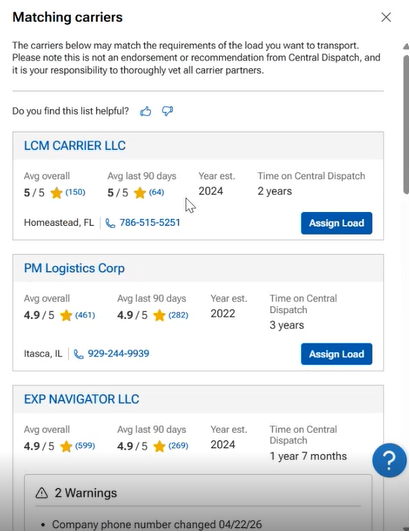
- Important:
- These are system-generated recommended carriers only
- Shippers must verify and vet carriers independently
Step 4: Assign Load to a Carrier
- Select a carrier from the recommended list
- Click “Assign Load”
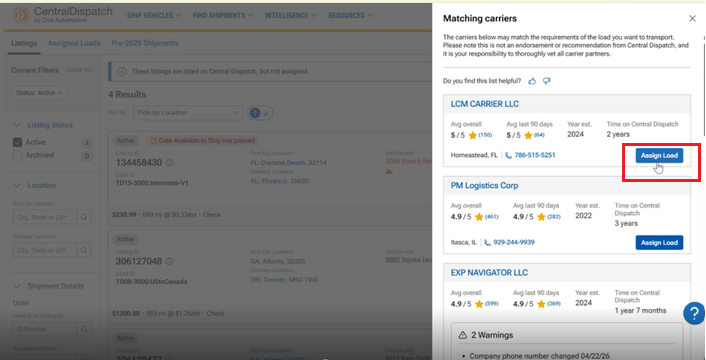
- System redirects to Assign Load page
- Shipper can view Pick-Up Location and Delivery Location information
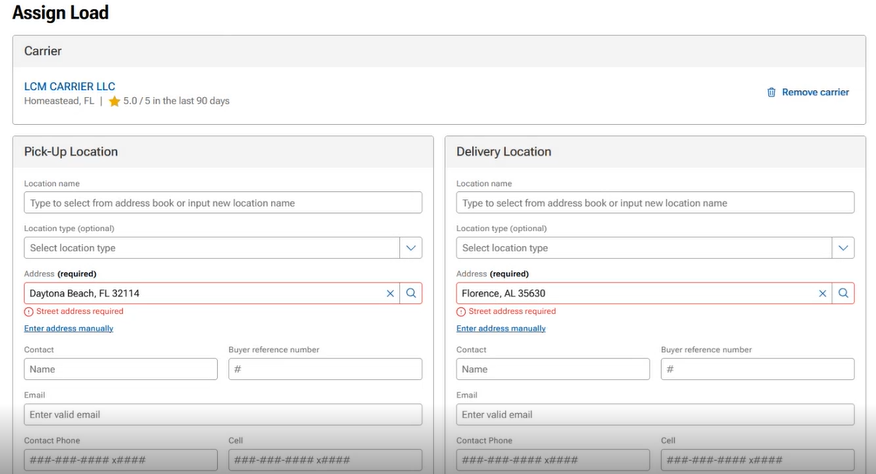
- Shipper can view Pick-Up Location and Delivery Location information
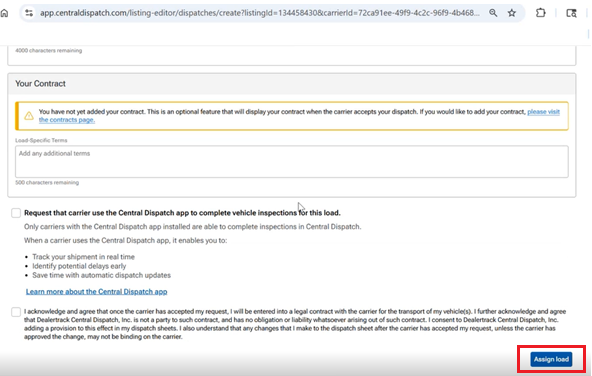
Step 5: Complete Assignment
- Review pre-filled details
- Complete and confirm assignment by clicking Assign Load at bottom of the page