
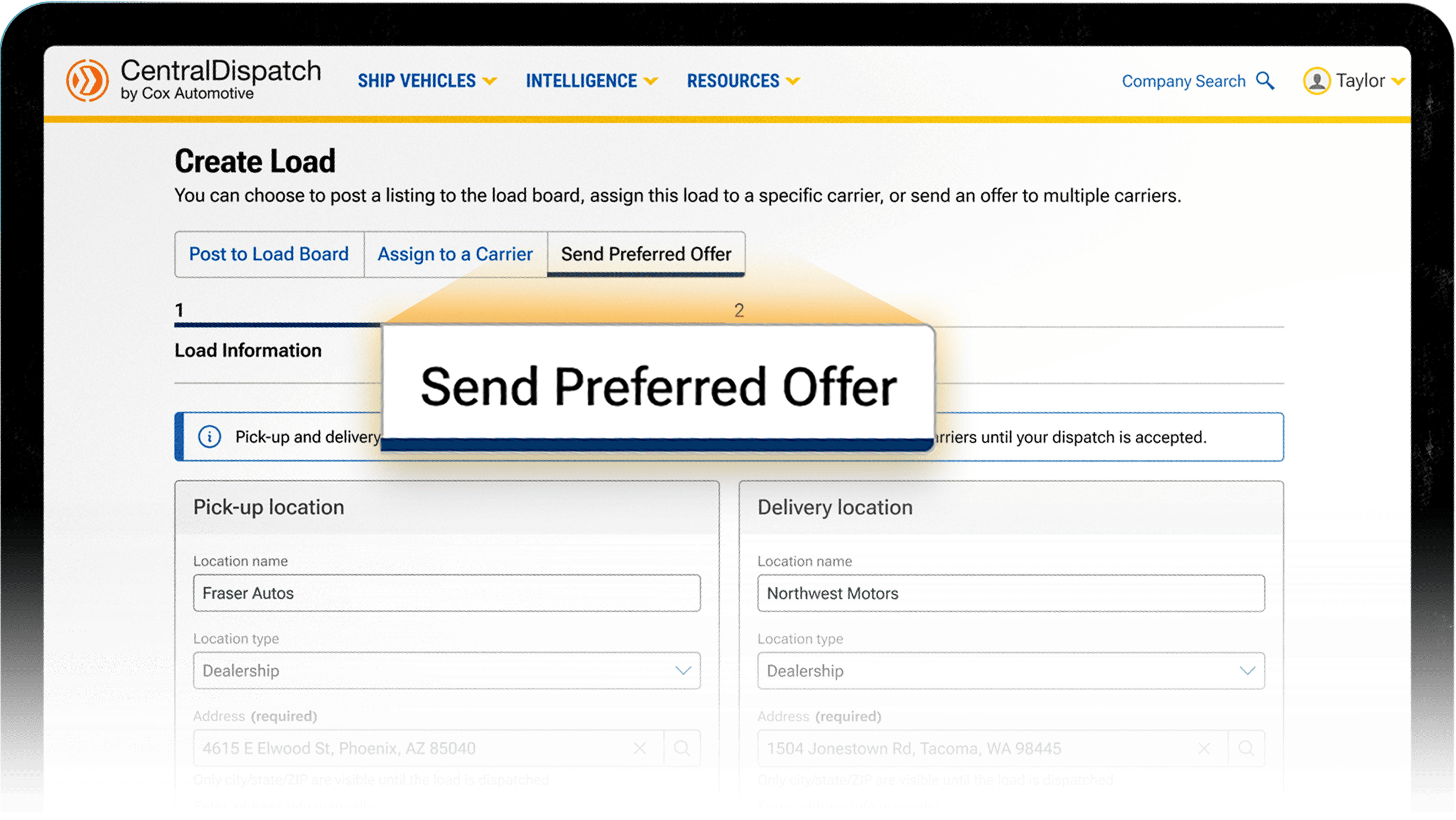
A Preferred Carrier Offer allows you to send your load directly to selected carriers from your preferred list, instead of posting it to the load board right away. The first carrier who accepts the offer will automatically be assigned to the load.
Using Preferred Carrier Offers helps you to:
- Work with carriers you already trust
- Reduce time waiting for bids
- Get faster load acceptance
Before You Start:
- Preferred Carrier Offers are available with a Premium shipper account
- You must have preferred carriers saved in your network to use this feature
- Preferred Carrier Offers can be sent when creating a load, or from an existing listing
- You can send the offer to up to 5 preferred carriers
Adding a Carrier to your Preferred List
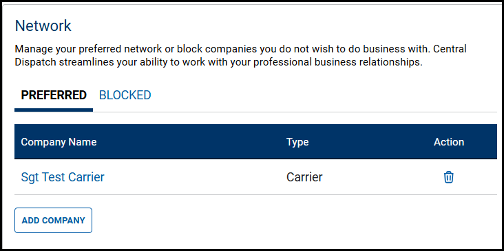
The Network page allows you to view your preferred network. There are several ways to add or remove companies from your network. View your Network by clicking on your account name and clicking the Company Profile link or the Network link.
- Click on Network
- To protect your account, only users with the Owner or Admin role can access your network
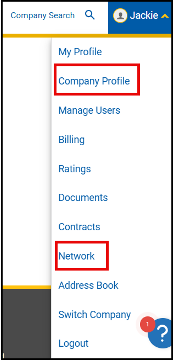
- To protect your account, only users with the Owner or Admin role can access your network
1. To add a company to your Preferred list from Network, click Add Company.
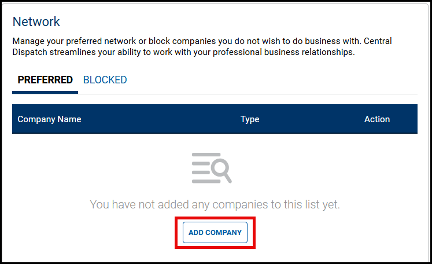
- Search for the Company and click Add to List
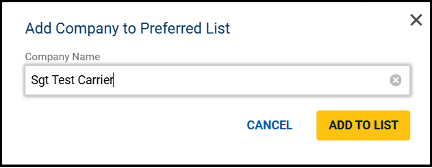
- Result: Company is added to network
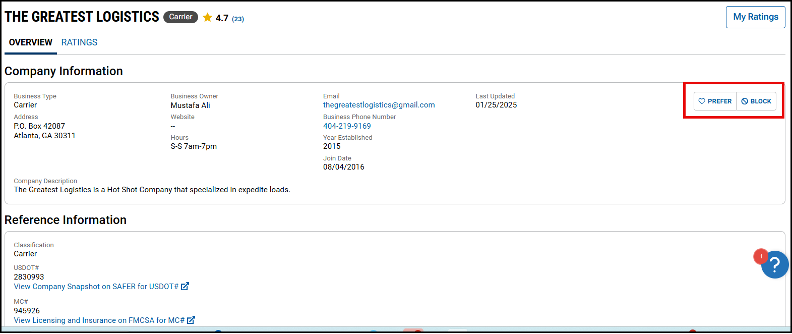
2. A carrier can also be added to the Preferred list from the Company Overview page by clicking Prefer button.
Creating a Preferred Carrier Offer
Option 1: Create a New Preferred Carrier Offer
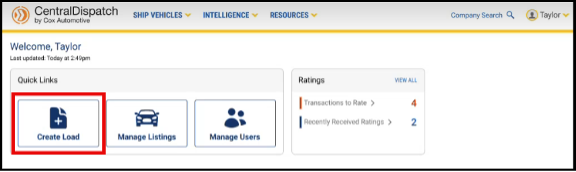
- Start creating a new load.
- Select Send Preferred Offer.
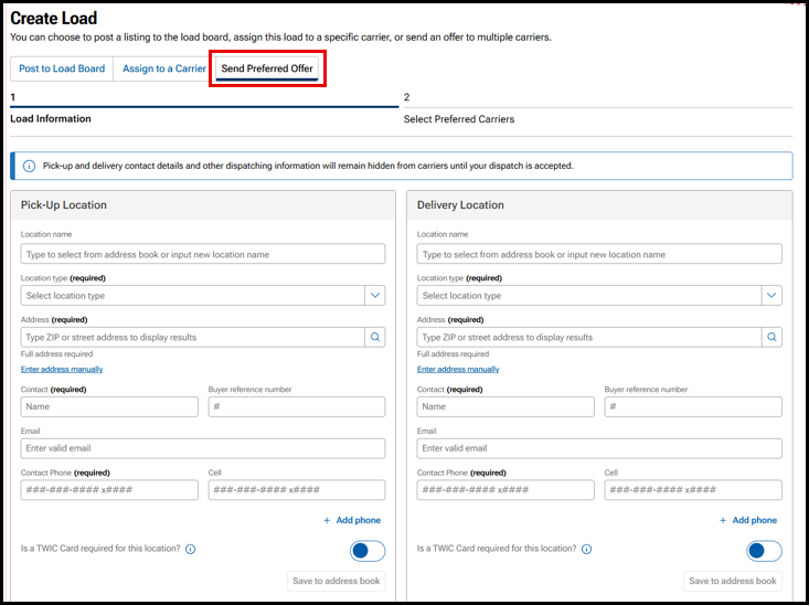
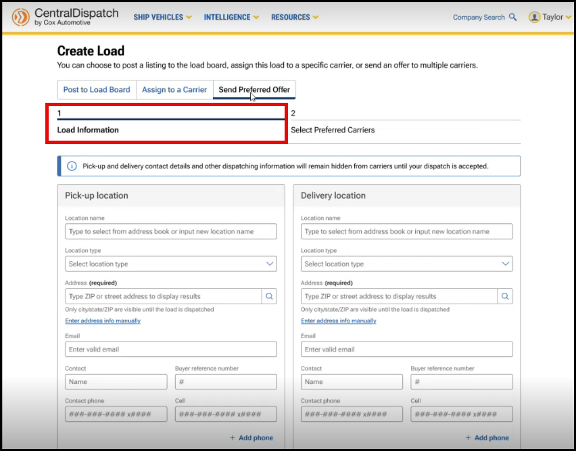
Step 1: Enter load details. Full address and contact information is required for preferred offers.
- Pick-up, delivery, VIN, and contact information are hidden until accepted by carrier
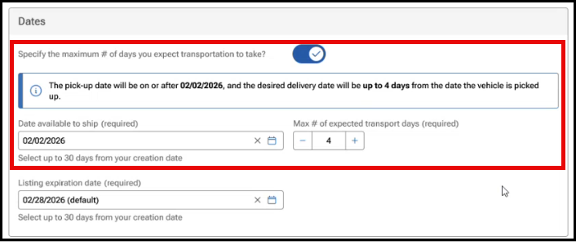
- Enter date available to ship and SLA for transport (maximum number of days you expect transport to take)
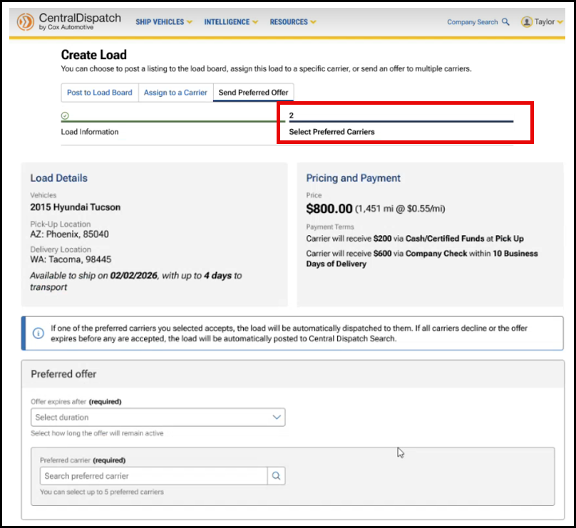
Step 2: Select preferred carriers
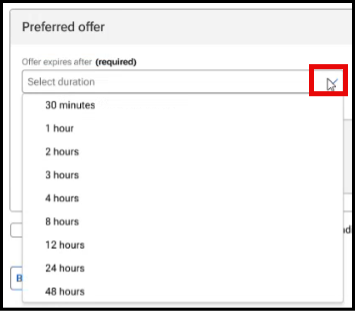
- Select how long the offer should remain active (30 minutes to 48 hours)
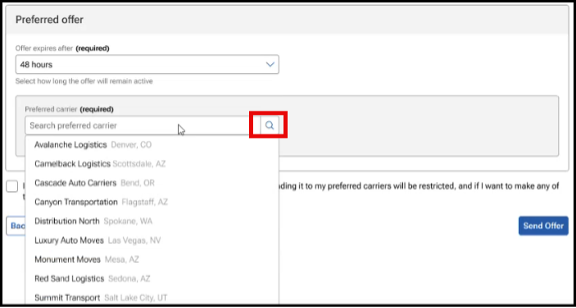
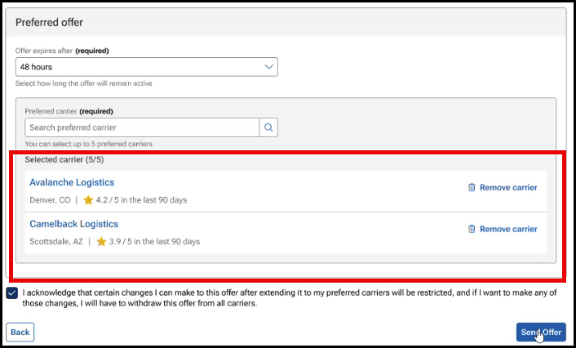
- Select up to 5 carriers from your preferred carrier list
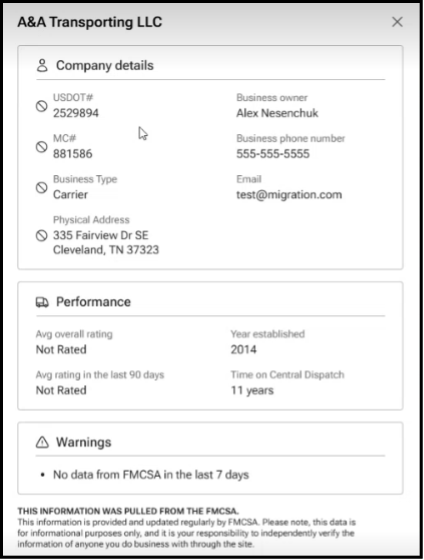
- Click on the name of the preferred carrier to view the carrier scorecard prior to selecting the carrier
3. Send the offer.
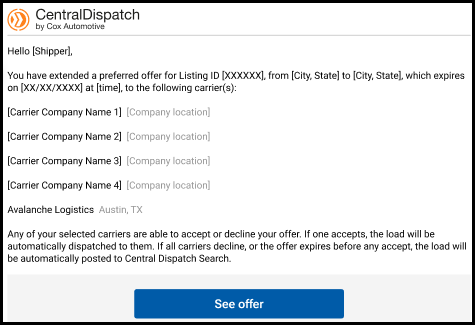
- Note: You will get an email confirmation after sending an offer
Option 2: Send from an Existing Listing
- Open your existing listing.
- Select More Actions, then choose Send Preferred Offer.
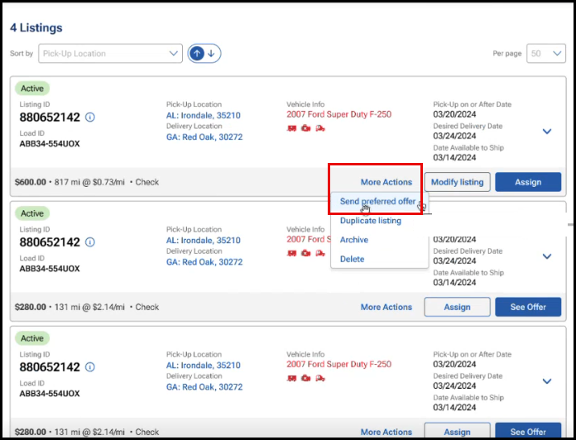
- A pop-up box will display to confirm the listing will be removed from search on Central Dispatch and be sent as a preferred offer.
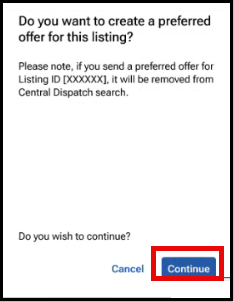
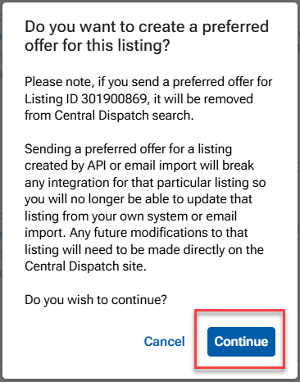
Note: The message below displays when a shipper with a Premium account clicks Send Preferred Offer from an existing listing.
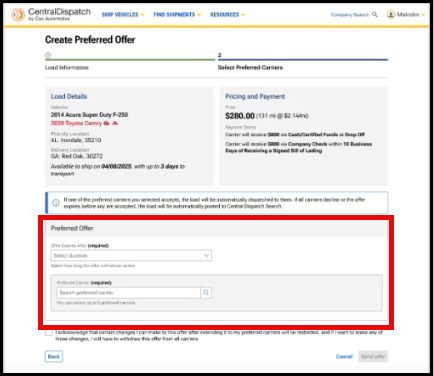
- Add any missing required details on the Preferred Offers screen, including full pick-up, delivery, and contact information
4. Select Expiration time (30 minutes to 48 hours), your Preferred Carriers (up to 5 carriers), and Send Offer.
What Happens Next:
- Your load will not be shown on the load board while the offer is active
- Selected carriers will receive the offer and can respond
- The first carrier to accept will be assigned to the load automatically. You will be sent a confirmation email when the load has been accepted
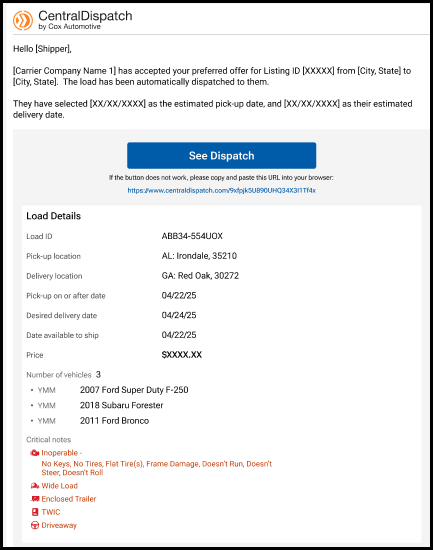
- If the offer expires or is declined, the load may return to the load board. You will be sent a confirmation email if the offer expires or is declined by all carriers

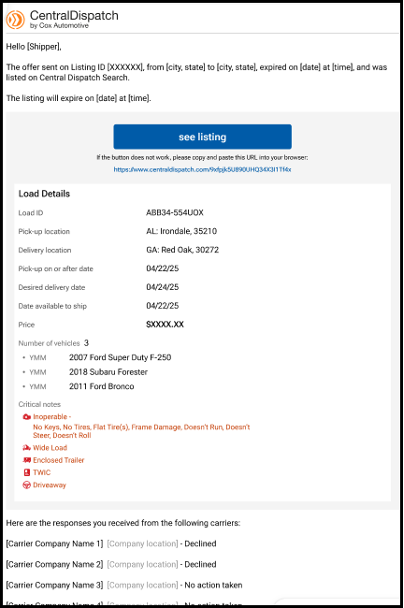
- Your load will not be shown on the load board while the offer is active
Managing Your Offer
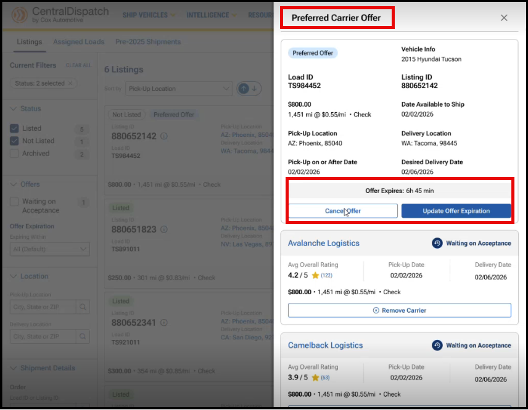
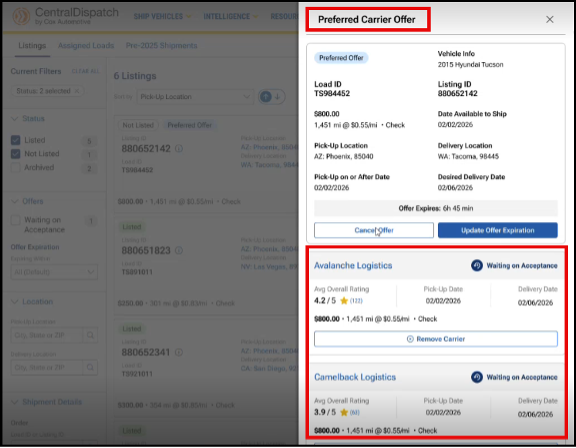
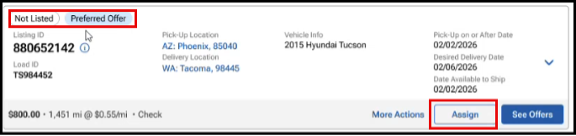
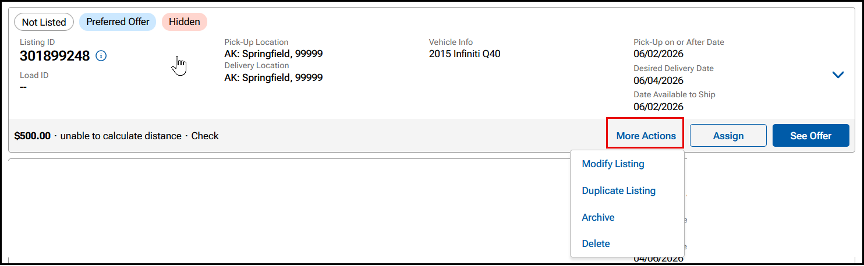
After sending an offer to your preferred carriers, the listing will be displayed in the Listings tab, under the Not Listed status, and a flag showing it is a Preferred Offer.
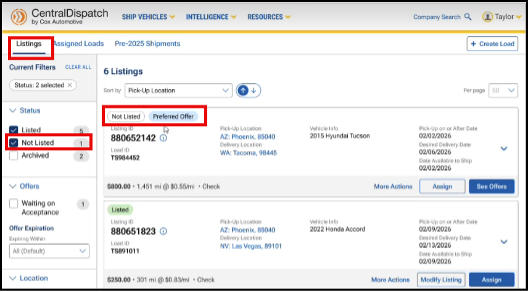
- See Offer button
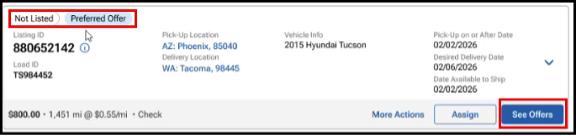
- Update the Offer Expiration
- Cancel the Offer
- Remove a Carrier
- Add a Carrier (if less than 5 selected)
- Assign button
- When assigning a preferred offer to a carrier, the offer will no longer be available for any other carriers to accept
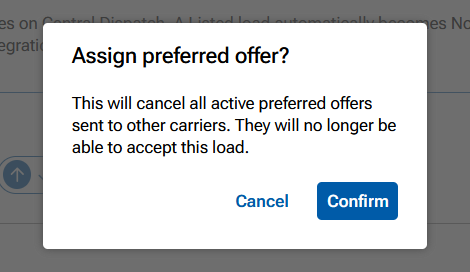
- After confirming, the Assign Load page will display. Review the load information and click Assign Load
- If a carrier has negotiated a different transport rate, it can be updated when assigning the load
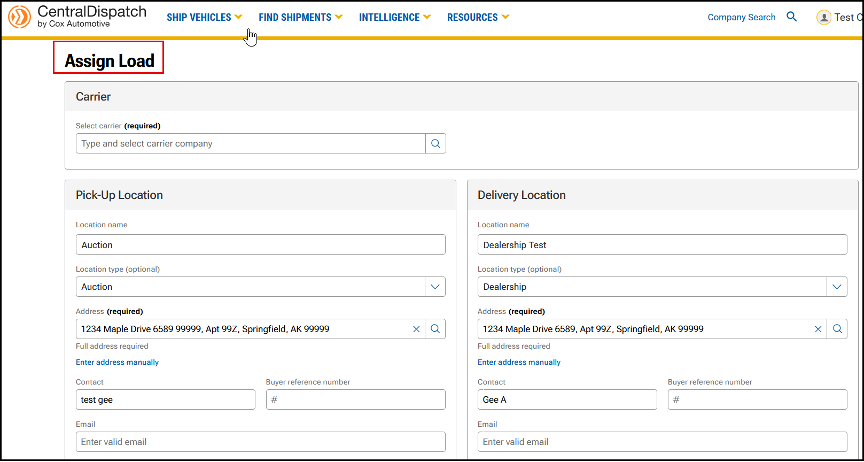

- If a carrier has negotiated a different transport rate, it can be updated when assigning the load
- When assigning a preferred offer to a carrier, the offer will no longer be available for any other carriers to accept
- More Actions button
- Modify Listing
- Duplicate Listing
- Archive Listing
- Delete Listing
Helpful Tips
- Keep your preferred carrier list up to date
- Review the offer expiration time so you know when it ends
- Check carrier details before sending offers if needed